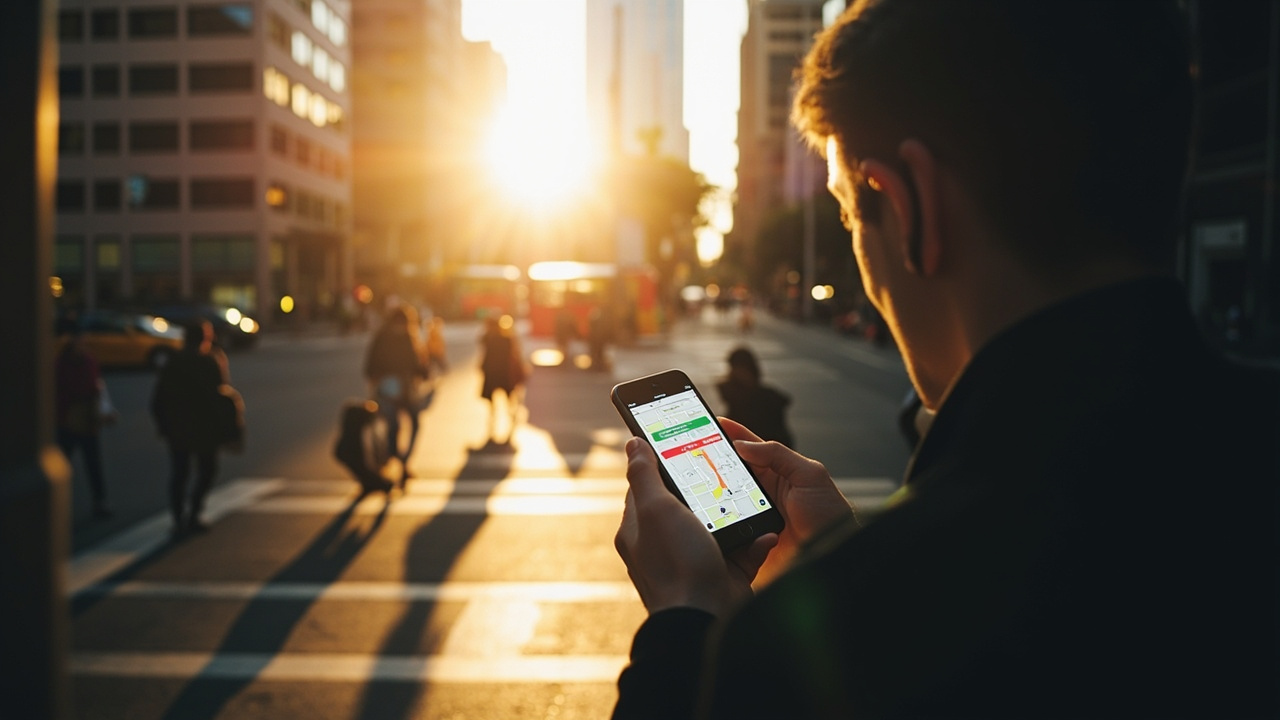
Google Maps does more than calculate routes. Buried within its familiar interface are features that reshape how you plan trips, coordinate meetings, and navigate unfamiliar areas. Most people never discover them because the app doesn't surface what it can actually do.
These aren't obscure Easter eggs. They're practical tools that take seconds to learn and pay off every single commute.
Quick take
- Traffic layer shows real-time congestion before you commit to a route
- One-finger zoom replaces pinch gestures for one-handed use
- Incognito mode stops saving searches and destinations to your account
- Long-press drops a precise pin you can share instantly
- Saved lists organize places by category for quick access later
Check traffic before you leave
Most people open Maps, enter a destination, then glance at traffic. That's backwards. Find the layers button in the upper portion of the screen and choose Traffic from the menu.
Roads appear in green, orange, and red across your entire view. Zoom out to spot regional buildup. Zoom in to inspect specific intersections. You might decide to leave early, take a different route entirely, or push your meeting back by 20 minutes.
This takes five seconds. It changes how you plan departures.
One-handed zoom and gestures
Pinch-to-zoom works fine until you're holding a bag or coffee. Double-tap and hold instead. Slide your finger up to zoom out, down to zoom in. It's faster and steadier than the pinch gesture.
The compass resets map orientation with a single tap. Two-finger tilt changes perspective, useful for visualizing highway interchanges before you encounter them.
Incognito mode for work searches
Maps saves everything to your account history by default. That includes places you research casually and destinations you'd rather not explain to an algorithm.
Open your account menu and activate Incognito. The screen appearance shifts subtly, and a small icon confirms the mode is running. From this point, searches and navigation stops accumulating in your account data.
This matters if Maps suggestions influence your recommendations or if you share a device with colleagues.
Dropping pins for exact locations
Long-press anywhere on the map to drop a red pin. No more approximating addresses or describing landmarks to someone meeting you in a park or stadium.
From the pin, you can save the location, share it, or start navigation. Send someone your exact spot when directions are unclear. Mark a meeting point in a large venue without an obvious street address.
Organizing saved places
The Save button appears when you open any location. Tap it to add the place to Favorites or a custom list. Create categories like "client sites," "errand clusters," or "team offsite options."
Once your lists exist, you stop rebuilding research every time. Someone asks where to eat near the office? Open your vetted list instead of scrolling through ratings you've already read.
Bottom line
Spend five minutes with these features on your next commute. The traffic layer alone will change how you leave the house. Everything else compounds from there.
Frequently asked questions
Does Incognito mode affect Google Assistant suggestions?
Incognito mode in Maps only affects Maps history and recommendations. Assistant suggestions draw from broader account data.
Can I create multiple saved lists?
Yes. You can create unlimited custom lists and sort them by category, neighborhood, or any criteria you choose.
Does the traffic layer work offline?
No. Traffic data requires an active connection to refresh.
Can I share a dropped pin with non-Maps users?
Yes. Sharing options include messaging apps, email, and copyable links that open in any browser.
Do saved lists sync across devices?
Yes. They're tied to your Google account and appear on any device running Maps.
Source: androidpolice.com