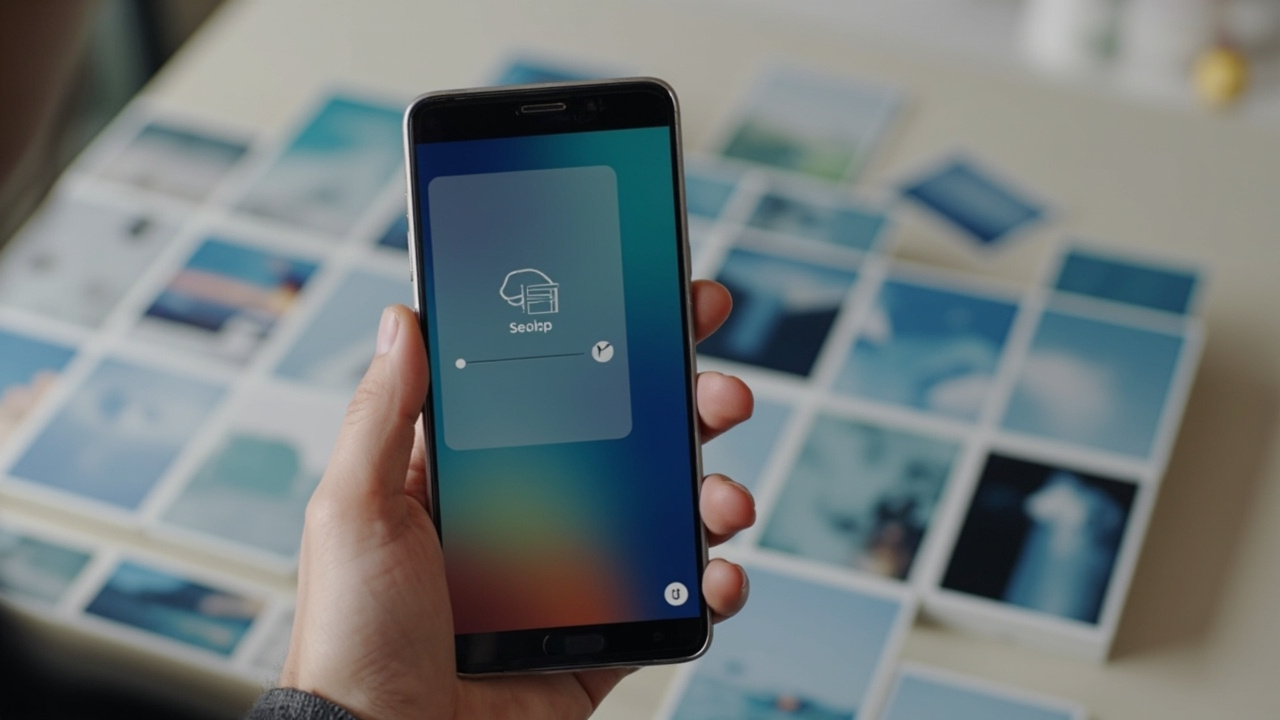
Samsung's Good Lock app is a goldmine of small quality-of-life tweaks, and the Nice Shot module is one of its most useful for anyone drowning in screenshots. It adds a trash icon to the floating toolbar that pops up after every capture, so accidental shots can be deleted on the spot.
The module also unlocks better crop control, customizable selfie video bubbles during screen recording, and automatic Do Not Disturb while recording. It is available through the Galaxy Store, and setup takes about a minute.
At a glance
- Nice Shot is a Good Lock plugin that changes default screenshot and screen recording behavior on Galaxy phones.
- The "Add delete button" option places a trash icon on the post-screenshot floating toolbar.
- Deleted screenshots skip the Gallery trash and are removed permanently.
- The module also adds disable-crop-snapping, larger or transparent selfie video bubbles, and DND during screen recording.
- Nice Shot is available through Good Lock's Plugins tab in the Galaxy Store.
Why a delete button matters
Anyone using Back-Tap gestures or palm-detection to grab screenshots knows the problem: a slightly off grip and the gallery fills with empty shots. The standard Samsung flow forces a trip into Gallery to clean them up, which never happens.
Nice Shot's "Add delete button" puts a single trash icon on the floating toolbar that appears for a few seconds after a capture. One tap and the unwanted shot is gone. The trade-off: deleted screenshots bypass the Gallery trash and cannot be recovered later.
That permanence is a feature for anyone who has ever scrolled past a hundred near-duplicate captures to find the right one.
The crop and recording extras
Nice Shot is not just about deleting. The "Disable crop snapping" toggle stops the screenshot crop tool from snapping to lines and edges—useful when isolating a specific object with precision.
For screen recording, the selfie video options let the front-camera bubble be doubled in size, made transparent, or auto-detected against a clean background. Sensitivity can be tuned for background removal. The "Do not disturb during screen recording" toggle silences incoming notifications automatically when recording starts, eliminating the need to remember to flip DND on first.
Who should care
| Use case | Primary benefit |
|---|---|
| Back-Tap gesture users | Eliminate accidental screenshots instantly |
| Screenshot-heavy workers (PMs, designers, analysts) | Keep gallery lean without manual cleanup |
| Frequent screen recorders | Clean selfie bubbles + automatic DND |
| Anyone cropping UI screenshots | Precision control without edge-snapping |
Skip it if:** You rarely take screenshots, prefer going through Gallery to manage files, or use a third-party screenshot manager already.
Why this matters
Samsung's Good Lock ecosystem is one of the few examples of a phone maker exposing deep UI controls without requiring root. Modules like Nice Shot let power users reshape default behavior in ways iOS and stock Android do not allow.
The catch is discoverability. These features sit two or three menus deep inside plugins, and there is no central changelog. New tweaks ship quietly, and the only way to find them is through community blogs and reviewers. That is a missed opportunity for Samsung, which could easily surface a "What's new" panel inside Good Lock itself.
Worked example
Say you are a product manager capturing screenshots of a competitor's checkout flow for tomorrow's sprint review. You set a Back-Tap gesture to grab a shot, then enable the Nice Shot delete button. After each capture, you glance at the floating toolbar: keep or trash. A double-thumb swipe that would have produced three junk shots now produces zero. End of day, your gallery is only the keepers, and the next morning's deck is half-built.
What to watch next
Watch for Nice Shot to gain a "send to trash instead of permanent delete" option, which would match the rest of Samsung's Gallery flow. Also keep an eye on Good Lock for broader DND controls, since the current implementation only covers screen recording. For now, this is a small but meaningful upgrade for any heavy screenshot user.
Key takeaways
- Enable Nice Shot from Good Lock's Plugins tab on Galaxy phones with Good Lock support.
- Turn on "Add delete button" to delete unwanted screenshots without opening Gallery.
- Use "Disable crop snapping" for precise crops when lines and edges are involved.
- Enable DND during screen recording to block notification interruptions automatically.
- Adjust selfie video bubble size and transparency for cleaner screen recordings.
Frequently asked questions
Does Nice Shot require Good Lock to be installed?
Yes. Nice Shot is a plugin under the Good Lock app, which is available from the Galaxy Store.
Where do deleted screenshots go when using the Nice Shot delete button?
They are deleted permanently and do not pass through the Gallery trash, so they cannot be restored later.
Can Nice Shot stop notifications during screen recordings?
Yes. The "Do not disturb during screen recording" toggle puts the phone into DND automatically whenever a recording starts.
Does Nice Shot work on non-Samsung Android phones?
No. It is a Galaxy-exclusive Good Lock module and only runs on Samsung devices with Good Lock support.
Is the crop-snap disable useful for non-line screenshots?
It still gives full manual control, but the biggest benefit is when capturing content with straight edges, grids, or UI lines that would otherwise pull the crop tool.
Inspired by reporting from: androidauthority.com