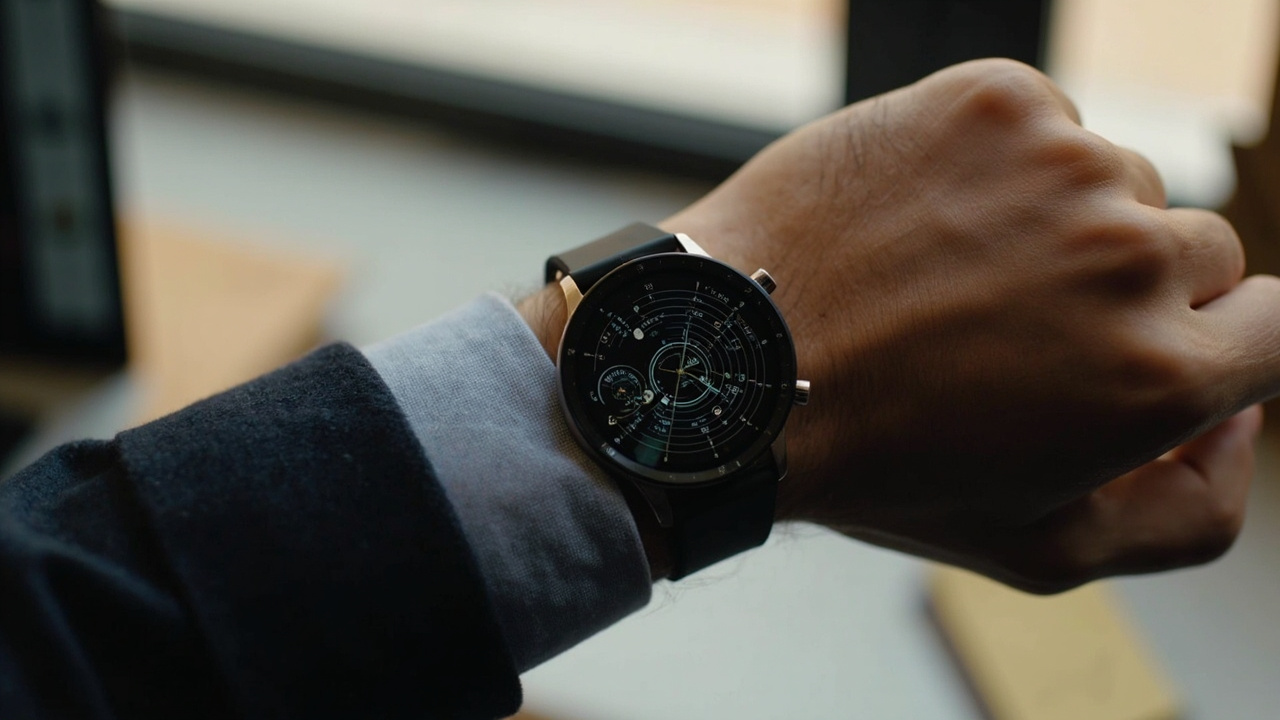
If you have picked up a Samsung Galaxy Watch 9 recently, you have probably noticed that the watch face selection process can feel a little overwhelming. There are dozens of options floating around the Galaxy Wearables app and the Google Play Store. Some packs in so much data that reading anything becomes a chore. Others strip things back so far that you wonder why you own a smartwatch at all.
The trick is finding something that matches how you actually work. Whether you need a quick glance at your morning metrics or you want your watch to look like a proper dress watch during client calls, there is a face out there that fits.
Radial Dashboard: When You Need Everything
The Radial Dashboard arrived as part of One UI 9 Watch and it quickly became a favourite for people who want their wrist to double as a status display. Out of the box it crams in ten complications: compass, sunrise and sunset, alarms, weather, heart rate, battery, rain chance, steps, UV index, and energy score.
That sounds chaotic, but the layout keeps it readable. The circular design distributes information evenly so nothing feels cramped. You can swap any of those slots for data points that actually matter to you. If weather updates feel pointless because your watch does not pull data correctly from a non-Samsung phone, swap it out for sleep score or calendar events.
Premium Analogue: Smart but Classy
Not every meeting calls for a dashboard full of numbers. Premium Analogue gives you a traditional analog face while still packing smart widget functionality underneath. You get the basics by default: weather, steps, battery, and a small date square at the bottom.
What makes this one interesting is the customization. You can pick between different color schemes and background patterns. The green cloudy look works well for casual days, while a black or white background with a squared pattern leans more professional. You can even add a monogram initial at the top. It is a solid middle ground that does not scream "tech enthusiast" in the wrong room.
Photo Sticker and Third-Party Options
Photo Sticker anchors your watch face around a picture and lets you choose from various cutout styles for that image. It is one of the more flexible layouts available natively, and the digital clock, workout shortcut, emoji, weather, and steps come built in. The limitation is that the clock style is locked to whatever sticker format you choose, so you lose some control over the overall look.
If the built-in options do not do it for you, third-party storefronts like Facer offer thousands more. Glass Frequency by Jives is a popular pick thanks to its retro-futuristic design with an animated digital clock, step counter, date, battery, and heart rate. The trade-off is that you cannot tweak the layout, data points, or colors.
Simple: For When You Want to Disappear
Samsung's Simple face does exactly what it says. Time and date, nothing else. No complications, no noise. This works best for people who treat their smartwatch primarily as a health tracker and want the watch to behave more like a regular watch. You can change the color of the time and date, but that is your lot.
The logic here is straightforward: if you do not want notifications and data points distracting you, a face like this supports that. You can always pull up Samsung Health on your phone for the detailed picture.
Key takeaways
- Radial Dashboard works well for data-heavy workflows but swapping complications to match your actual routine matters.
- Premium Analogue is the smart choice when you need a watch to look formal without losing functionality.
- Third-party faces like Glass Frequency offer unique styles but trade customization for aesthetics.
- Simple is ideal if you want your watch to step back and let you focus.
Frequently asked questions
Can you use watch faces from the Galaxy Wearables app on any Android phone?
The Galaxy Wearables app works with Samsung watches regardless of which Android phone you use, so you are not locked to Samsung hardware.
Do third-party watch faces drain more battery?
It depends on the face. Animated or data-heavy faces can use more power, but simple faces with fewer complications tend to be lighter on battery life.
Can you customize complications on all Galaxy Watch faces?
Not all faces support complications. Native Samsung faces like Radial Dashboard and Premium Analogue let you swap them out, while faces like Simple have no complications to edit.
How do you install new watch faces on Galaxy Watch 9?
Open the Galaxy Wearables app, tap Watch Faces, browse or search for something you like, and tap Download. The new face appears on your watch automatically.
Inspired by reporting from: androidauthority.com